A Guide to Git Version Control and Commit Conventions
Git fundamentals
What are Git and GitHub?
GitHub is the world’s largest code-hosting platform and hosts many open-source projects.
Git is a distributed version-control system and a powerful tool for individual and team development. Beginners can start with the Liao Xuefeng Git tutorial or Learn Git Branching.
Git’s key advantages
As a distributed version-control system, Git has these advantages:
- Version management — roll code back to any point represented by an earlier commit.
- Branches — create branches for different features and switch or merge them quickly.
- Collaboration — everyone on a team has a complete local repository and can clearly see each person’s updates.
How version control works
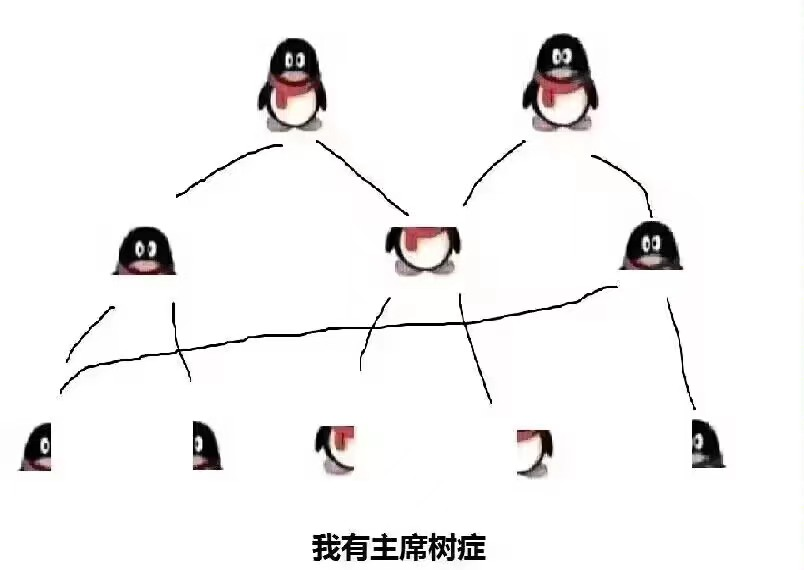
Git’s implementation is similar to a persistent segment tree: it saves memory effectively by recording file changes as snapshots.
Common Git operations
Basic workflow
Initialize a project
git initDownload a project
git clone <repository-URL> [--depth=1] [target-directory-name]Download a remote repository to the local machine.
<repository-URL>: the address of the remote repository.
--depth=1: optional; clone only the latest commit history to reduce the download.
[target-directory-name]: optional; specify the local directory name.
Add files to the staging area
git add filename.txt    # Add a specific file
git add .               # Add all new files
Commit changes
git commit -m "Describe the change"Remote collaboration
Pull remote updates
git pull [remote] [branch]This command fetches and merges code from a remote. In fact, git pull combines git fetch and git merge.
CAUTION
Before using git pull, add and commit your local changes to avoid losing code during a conflict.
For unfinished work, use git stash to put it aside temporarily.
Use git status to inspect the state of your changes before pulling remote code.
Fetch remote updates
git fetch [remote]This only fetches code from the remote. It does not automatically merge it or modify the current work; you must merge it yourself.
Push to a remote repository
git push [remote] [branch]Push local changes to a remote branch so that team members can retrieve them.
Branch management
Branch operations
- List all local branches:
git branch - Create a branch:
git branch [branch-name] - Delete a branch:
git branch -d [branch-name] - Force-delete a branch:
git branch -D [branch-name]
Switch branches
- Switch to an existing branch:
git checkout [branch-name] - Create and switch to a new branch:
git checkout -b [branch-name] - Restore a file from a specific revision:
git checkout [commit] [file]
Stash code
When you need to switch branches while the current code is unfinished, use the stash feature:
git stash              # Stash current changes
git stash list         # List stashes
git stash apply [node] # Apply a specific stash
git stash pop          # Apply and remove the latest stash
git stash clear        # Clear all stashes
Git commit conventions
Angular team convention
Commit conventions make it easier to submit complete update information and review it later. The most widely used commit-message convention originated with the Angular team.
Each commit should be categorized and include a description. The basic syntax is:
git commit -m "feat: add a new feature"Full format:
type(scope?): subject # scope is optional and may cover multiple areasCommit types
| Type | Description |
|---|---|
| feat | Add a feature |
| fix | Fix a bug |
| perf | Change code to improve performance |
| refactor | Restructure code without changing its behavior or features |
| docs | Documentation changes |
| style | Code-format changes, not CSS changes (for example, semicolons) |
| test | Add or modify tests |
| build | Change the build or dependencies |
| revert | Revert a previous commit |
| ci | Change continuous-integration files |
| chore | Other changes not covered above |
| release | Release a new version |
| workflow | Change workflow-related files |
Examples
| Commit message | Description |
|---|---|
| chore: init | Initialize the project |
| chore: update deps | Update dependencies |
| chore: wording | Adjust wording |
| chore: fix typos | Fix spelling errors |
| chore: release v1.0.0 | Release version 1.0.0 |
| fix: icon size | Fix icon size |
| fix: value.length -> values.length | Adjust the values variable |
| feat(blog): add comment section | Add a comment section to the blog |
| feat: support typescript | Add TypeScript support |
| feat: improve xxx types | Improve the xxx types |
| style(component): code | Adjust component code style |
| refactor: xxx | Refactor xxx |
| perf(utils): random function | Optimize the random function in utils |
| docs: xxx.md | Add the xxx.md article |
For more examples, see commit histories in mainstream open-source projects.
Convention-checking tools
Use commitlint, together with husky, to check whether commit messages meet the convention.
Conventions are not mandatory, but a commit message should briefly explain the main change. This helps both you and others understand the history later.
Advanced techniques
Rewriting history
Combine multiple commits
git rebase -i HEAD~numberUse this to combine several commits into one. Change pick to s or squash; change it to r if you also want to edit the commit message.
View the operation history
git reflogThis records all operations and lets you roll back to any revision.
Managing worktrees
Develop multiple branches at once
git worktreeUse worktrees when you want to develop two branches of the same project at once without using stash or commit.